
Most AI tools give you advice. Claude Cowork does the work.
If you run a small business, you know the feeling: a proposal needs to go out by 5 PM, your inbox is a mess of requests and follow-ups, and you have three research tabs open trying to prep for tomorrow's client call. None of this is hard work, but all of it takes time you could spend on things that actually grow your business.
Claude Cowork, Anthropic's desktop AI agent for knowledge work, changes that. Instead of telling you how to draft the proposal, it reads your notes, checks your winning proposals for tone, and hands you a finished draft. This guide walks you through exactly how to set it up and which tasks to hand off first.
What Is Claude Cowork and Why It Is Different from Regular AI Chat
Claude Cowork lives inside the Claude Desktop app (available on macOS and Windows). When you switch to Cowork, you give Claude access to a folder on your computer. From that point, it can read, edit, and create files directly, without you needing to copy-paste anything.
The difference matters. With standard AI chat tools, you describe a task and get instructions. With Cowork, you describe a task and get a finished deliverable dropped into your folder. It also connects to 38+ workplace tools through Cowork Connectors, including Gmail, Google Drive, Google Calendar, Notion, Slack, HubSpot, and Salesforce. Every connector uses the Model Context Protocol (MCP) to give Claude secure, read-and-write access to your existing data.
AI productivity creator Jeff Su covered this in April 2026 in his viral tutorial “Learn 80% of Claude Cowork in Under 20 Minutes,” walking through 7 core capabilities: local file access, persistent memory, connectors, skills, Cowork Projects, scheduled tasks, and plugins. His key point: Cowork is not an upgrade to chat. It is a different kind of tool.
Claude Cowork is available on Pro ($20/month), Max ($100–$200/month), Team (from $25/user/month), and Enterprise plans.
Setting It Up in 5 Minutes
You do not need any technical background to get started. Here is the full setup:
Step 1: Download Claude Desktop
Go to claude.ai and download the desktop app for macOS or Windows. Sign into your paid account.
Step 2: Open Cowork Settings
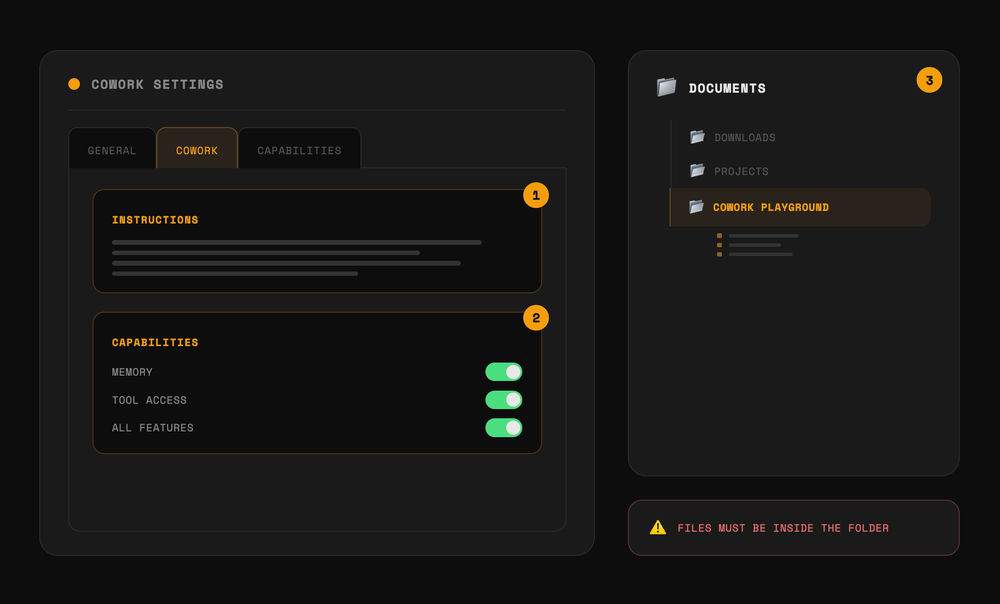
In the app, click Settings then the Cowork tab. This is where you give Cowork its instructions and permissions.
Step 3: Write your instructions
In the Instructions field, tell Claude who you are and how you work. Something like: “I run a logistics consultancy. I communicate directly and avoid jargon. Proposals should be confident but not pushy. Always ask if budget and timeline are in my notes before drafting pricing.”
These instructions persist across every session. You only write them once.
Step 4: Enable capabilities
Toggle on Memory, Tool Access, and All Features. Memory means Claude carries context between sessions. Tool Access lets it use connectors and run skills.
Step 5: Select a working folder
Create a folder on your desktop called “Cowork Workspace.” Point Cowork to that folder. All files Claude reads and creates will live here.
Step 6: Add connectors
Go to the Customize tab, then Connectors, and click the + button. Start with Gmail and Google Drive. Each connection takes under a minute and uses OAuth, so you never hand over a password.
Three Tasks to Hand Off Right Away
Once you are set up, here are the three highest-value tasks to start delegating.
1. Proposals
After a discovery call, drop your notes into the Cowork Workspace folder. Then type something like:
“Using my notes from the call with [client name], draft a proposal. Match the tone and structure of the previous proposals in this folder. If budget or timeline is not in my notes, flag it before drafting.”
Cowork reads your notes, checks your previous proposals for style, asks the right questions, and delivers a draft. You review and send. What used to take two hours takes twenty minutes.
2. Email triage
With the Gmail connector active, you can ask Cowork to surface the emails that need your attention and draft replies for the rest. A prompt like “Review my inbox from the last 24 hours, list anything that needs my direct response, and draft replies for the others” gives you a summary and a set of ready-to-edit drafts in your folder.
3. Research and briefings
Cowork can cross-reference multiple sources simultaneously. If you have a call transcript in Google Drive and meeting notes in Notion, ask Cowork to pull both, identify gaps or action items, and produce a one-page briefing. What would take an hour of manual reading and comparison happens in seconds.
One Limitation Worth Knowing
Scheduled tasks in Cowork require the Claude Desktop app to stay open and your computer to stay awake. If you close the app, scheduled automations pause. Anthropic's Routines feature (currently in research preview) is the cloud-hosted version that runs even when your laptop is closed. For most day-to-day SMB tasks, the desktop scheduling works well during business hours.
How AppCoders Can Help You Go Further
Getting Cowork set up is straightforward. The harder part is designing the workflows that make it worth the subscription. At AppCoders, we help SMB founders build Claude Cowork setups tailored to their operations: writing instruction files that match your voice and business context, connecting your CRM, building reusable skills, and creating Projects that handle entire client lifecycle workflows. If you want a system rather than just a tool, book a free call with the AppCoders team.
Start with One Task
The fastest way to see the value is to start with your next proposal. Drop your notes into a folder, give Cowork your instructions, and see what it produces. You do not need to automate everything at once. Pick the one task that costs you the most time this week and let Cowork handle it.
Once you have seen it work on one thing, the rest follows naturally.
Ready to build a proper AI assistant for your business? Contact AppCoders for a free 30-minute call.