
If you run a small business, spreadsheets are probably eating your week.
Tracking unpaid invoices. Updating monthly dashboards. Debugging formulas that break every time someone adds a new row. These tasks are not hard – they are just slow, repetitive, and relentless.
Claude for Excel changes this. Instead of hiring a developer or spending hours on YouTube tutorials, you can describe what you want in plain English and let Claude handle it directly inside Excel. No copy-paste between browser tabs. No formula manuals.
This guide shows you exactly what Claude for Excel does, how to set it up in under 10 minutes, and which spreadsheet tasks to automate first.
The Real Cost of Manual Spreadsheet Work
Most business owners did not train as Excel experts. They learned enough to get by – basic sums, maybe a vlookup – and built their entire operations on those basics.
The result is fragile workbooks. Hardcoded values instead of linked formulas. Dashboards that need manual updates every week. Invoice trackers where someone has to count the days by hand.
Fixing this properly takes skill. You could hire a freelance Excel consultant – but that is expensive for a one-off job. You could watch tutorials – but most are aimed at accountants, not founders. And you could just keep doing it manually – which is what most SMBs do.
The better option is to bring AI directly into your spreadsheet. Not to write formulas for you in a separate chat window, but to read your actual file and make changes to it in real time.
What Claude for Excel Actually Does
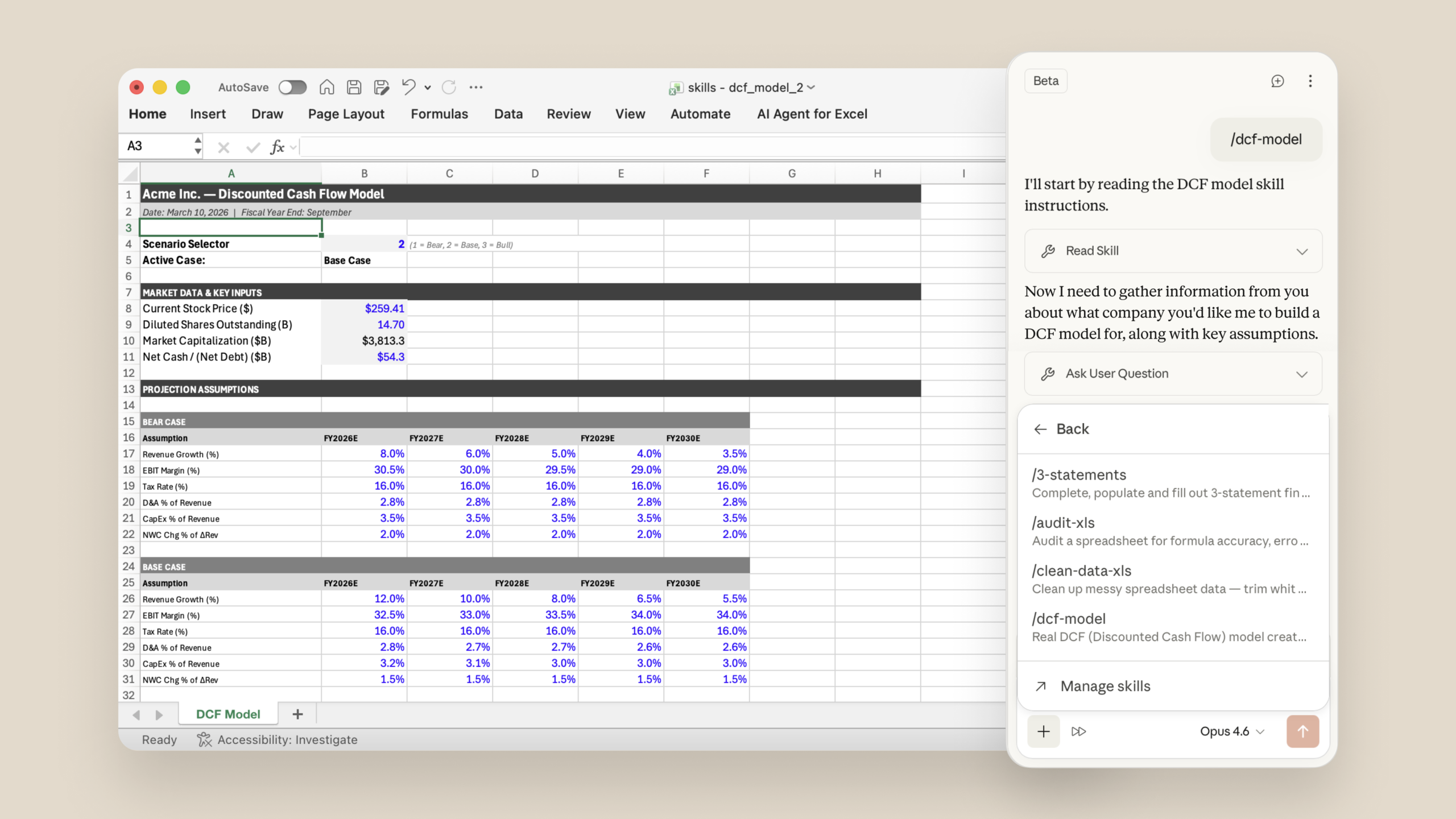
Claude for Excel is a sidebar add-in that lives inside Microsoft Excel. Once installed, it can read your entire workbook – every tab, every formula, every linked cell – before it acts.
This matters because most AI tools for spreadsheets are generic. They give you formula suggestions without knowing your data. Claude for Excel reads what is actually in your file first.
Here is what it can do:
Answer questions with cell-level citations. Ask “where does the revenue forecast come from?” and Claude points to the exact cells – not a general explanation.
Fix errors without guessing. If a formula throws a #REF! or #VALUE! error, Claude diagnoses it by reading the surrounding formulas to find the actual cause.
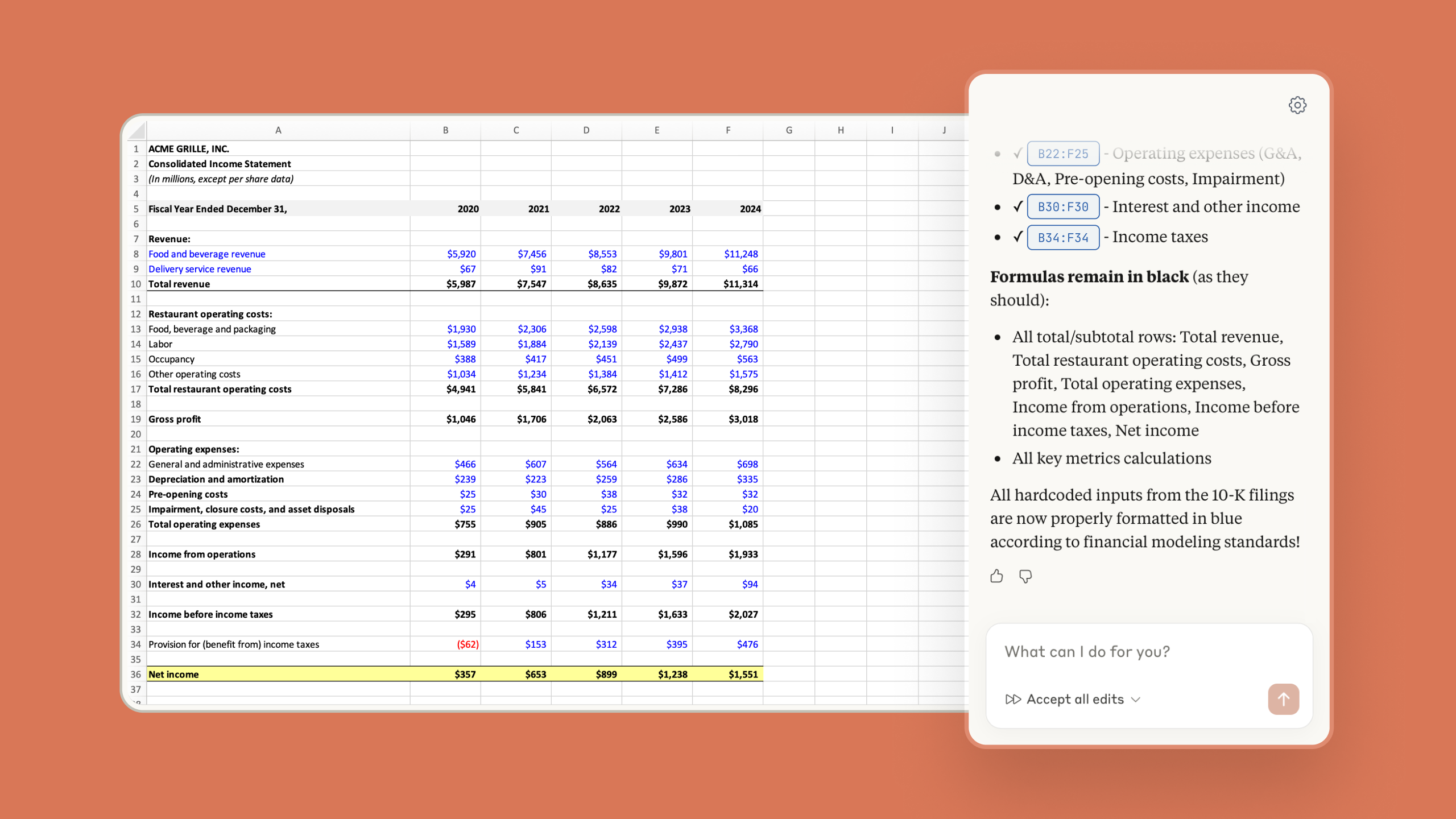
Adjust assumptions while preserving relationships. If your financial model has linked cells across tabs, Claude changes the input values without breaking the connections.
Build or populate templates. Give Claude a blank invoice tracker template and your raw data in another tab, and it fills the template with the right structure and formatting.
Add new logic to existing sheets. Ask it to add a column showing how many days each invoice is overdue, or to apply conditional formatting that highlights unpaid rows in red. It makes the changes and shows you what it did.
Claude for Excel is available on all paid Claude plans starting with the Pro plan at $20/month. It works on Windows, Mac, and Excel on the web.
How to Get Started in Under 10 Minutes
Getting Claude into Excel takes less than 10 minutes.
Step 1: Install the add-in. Open Excel and go to Add-ins (Home tab on Windows, Tools menu on Mac). Search for “Claude for Microsoft 365” in Microsoft AppSource and click Get it now.
Step 2: Sign in. The sidebar asks you to sign in with your Claude account – the same email as your paid plan.
Step 3: Open your workbook. Claude reads the active file when you start a conversation. You do not need to paste data or export anything.
Step 4: Describe what you need. Use plain English. “Add a Days Overdue column to this invoice table” or “explain how the revenue calculation in tab 3 works” both work.
Four tasks worth trying in your first session:
- Invoice aging. Ask Claude to add a “Days Since Invoice Date” column and highlight rows where payment is more than 30 days overdue.
- Monthly summary. If you have raw transaction data in one tab, ask Claude to build a month-by-month summary table in a new tab.
- Formula audit. Open a multi-tab financial model and ask Claude to explain how the tabs connect and flag any broken cell references.
- Report update. Give Claude a monthly report template and new data, and ask it to fill in this month’s numbers while keeping the same layout.
Each of these tasks takes meaningful time to do manually, especially if the workbook is complex or inherited from someone else. Claude handles most of them in a single conversation.
How AppCoders Helps
Claude for Excel is a strong tool for individual spreadsheet tasks. But if you want to go further – automated invoice reminders, dashboards that refresh from live data, reports that send themselves – that is where a full automation stack becomes useful.
At AppCoders, we build AI agent systems for SMBs that connect your existing tools (Excel, Gmail, Google Sheets, your CRM) into workflows that run without your involvement. Visit appcoders.ae/blog to see what we build for founders like you.
Conclusion
Claude for Excel gives you a capable AI assistant working inside your actual spreadsheets – not a generic chatbot giving advice from outside them.
Start with one task: your invoice tracker, your monthly dashboard, or your most persistent formula error. Once you see how it responds to your specific workbook, the next use case becomes obvious.
Ready to automate more of your business operations? Book a free call and we will show you what is possible.