
Most founders already know they should use AI for email. The problem is that following through still means opening ChatGPT, typing a prompt, pasting content in, and waiting. That friction kills adoption faster than any learning curve.
OpenAI addressed this on August 25, 2026, expanding ChatGPT Work’s webhook-triggered tasks to Plus and Pro users. Instead of prompting Work manually each time, you tell it once what to do when something specific happens. A client email lands. A message appears in your sales Slack channel. A team member opens a pull request. ChatGPT Work responds automatically. No prompt needed, no copy-paste, no tab switching.
This article explains how webhook triggers work, which services are supported right now, and which four automations are worth setting up first.
What Webhook Triggers Are (and Why They Are Different From Scheduled Tasks)
ChatGPT Work already supports scheduled tasks: you set a prompt to run daily at 9am, for example. Webhook triggers are a different mechanism. Instead of running on a time interval, they fire the moment a specific event happens in a connected app.
That distinction matters for time-sensitive work. A daily email summary is useful. An automatic draft the moment an important client writes back is more useful. Webhook triggers handle the second case.
When a trigger fires, Work runs the task you wrote, using your actual connected data (your real inbox, your real Slack channels) and drops a result into your Scheduled view. That view behaves like an inbox: runs that need your attention get flagged; the rest stay in history.
You stay in control. ChatGPT Work prepares and surfaces. You decide and act.
Which Services Support Webhook Triggers Right Now
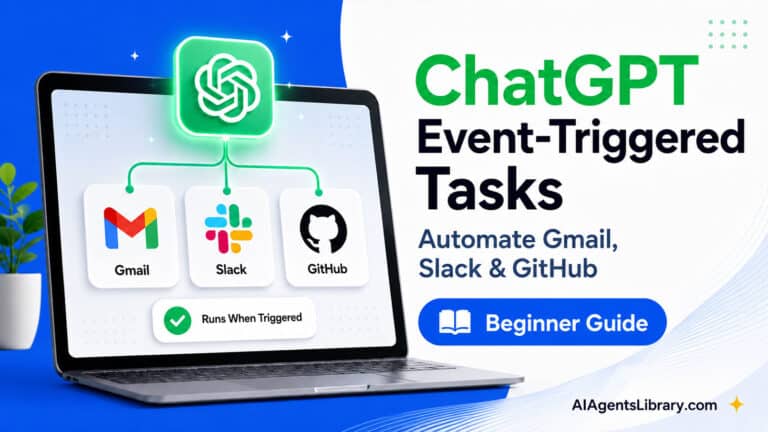
As of August 25, 2026, ChatGPT Work supports three event sources:
Gmail: A task fires when a new message arrives in your connected inbox. You can filter by sender (so only emails from a specific client or domain trigger the task) or by subject line keywords.
Slack: A task fires when a new message is posted in a selected channel. You can filter by author and choose whether thread replies count as triggers. You add @ChatGPT to any channel you want monitored.
GitHub: A task fires on pull request activity in a connected repository. You can filter by author, title, or label, and specify whether reviews, comments, commit updates, or only merges should trigger it.
Webhook triggers are available on Plus, Pro, Business, Enterprise, Edu, and ChatGPT for Healthcare plans. Free accounts can use scheduled tasks but not webhook triggers, and recurring tasks on Free are limited to once per day.
How to Set Up a Webhook Trigger: Gmail in Three Minutes
Step 1. Go to Settings in ChatGPT and select Apps. Connect your Gmail account if you have not done so already.
Step 2. Open Work mode. Describe the trigger and the action in plain language: “When a new email arrives from [client domain], summarize the key points and draft a reply for my review.”
Step 3. ChatGPT presents three fields before saving: Trigger (the event that activates the task), Condition (any filter such as sender or subject), and Prompt (what Work will do). Review and adjust, then save.
Step 4. Once active, Work monitors your connected inbox. When a matching email arrives, it runs the task and drops the result into your Scheduled view, labeled with the trigger event and a timestamp.
For Slack, the setup is identical. The one extra step: add @ChatGPT to every channel you want monitored. Work will not read channels where it has not been invited.
Four Automations Worth Setting Up First
Client email triage. Trigger on new emails filtered to your active client domains. Prompt: summarize the request, flag whether action is needed, and draft a reply. You check the Scheduled view once in the morning and once before close of day instead of monitoring your inbox throughout.
Lead response drafting. Trigger on emails from your lead capture form domain or a CRM notification address. Prompt: summarize the inquiry, match it against your standard services, and draft a personalized reply. First-response time drops from hours to minutes.
Team Slack summaries. Trigger on a dedicated #updates or #ops channel. Prompt: when a new message arrives, summarize it and identify any action item that needs tracking. Useful if your team posts updates throughout the day and you need a clean summary without reading every thread.
Pull request review. For founders managing a development team. Trigger on GitHub pull request activity. Prompt: when a new pull request is opened, summarize what changed, check it against the task description, and flag anything that looks incomplete or inconsistent.
How AppCoders Can Help
Setting up one webhook trigger takes three minutes. Building a reliable system across Gmail, Slack, and GitHub, with multiple triggers, consistent outputs, and a review process that fits your actual schedule, takes more planning. At AppCoders, we help SMB founders design AI workflows that run without supervision. Book a free call at https://appcoders.ae/contact.html#form to walk through your setup.
Start With Your Inbox This Week
ChatGPT Work’s webhook triggers are available now on Plus, Pro, Business, Enterprise, and Edu plans. The Gmail trigger takes about three minutes to enable.
Start with one connection. Set a trigger for your most active client email address and check what Work produces after the first event fires. If the output is useful, you have reduced your daily email monitoring permanently without changing any other part of your workflow.
Adding more triggers and refining prompts is straightforward once the first one is working.